


Gaming Mouse Settings Guide: DPI, Polling Rate, Debounce, and More
Guides & Resources
Aug 05 2026
Most gaming mouse settings advice starts and ends with DPI. Higher DPI equals faster cursor movement — so copy whatever DPI your favorite pro player uses and call it a day, right? That's where the consensus breaks down. DPI is just one of four interconnected settings that actually determine how your mouse translates hand movement into on-screen response. The other three — sensitivity, polling rate, and debounce — are where most players accidentally sabotage their setup. This guide walks through each setting, why they matter independently, and how to configure them as a system rather than chasing a magic DPI number.
Why DPI Alone Doesn't Define Your Setup
Before diving into individual settings, here's what most players get wrong: DPI and sensitivity are treated as the same thing. They're not. This confusion costs players consistency because changing one without understanding the other creates the exact opposite effect they're chasing.
DPI (dots per inch) is a hardware setting — how many pixels the mouse moves for a fixed physical distance your hand travels. A mouse set to 800 DPI will move the cursor twice as far as the same mouse at 400 DPI, all else equal.
Sensitivity is a software setting inside the game engine — an additional multiplier applied on top of the DPI value. A game running at 1.0 sensitivity takes whatever DPI value you've set and uses it directly. At 0.5 sensitivity, the game cuts that value in half, even if the mouse is reporting 3200 DPI.
What this usually means is a player who feels their aim is "too slow" often cranks DPI instead of sensitivity, which is backwards. DPI changes affect your entire system — desktop, menus, every game. Sensitivity changes affect only that one game. Most competitive players fix their DPI to a comfortable system-wide baseline (usually 400–800), then tune sensitivity per game.
The three other variables that make a setup feel responsive or sluggish are polling rate, debounce, and mouse acceleration (or, more precisely, the absence of it). Each one independent of DPI creates a layer of response between your hand and the screen.
Understanding Polling Rate: Why 1000 Hz Became the Baseline
Polling rate is how many times per second your mouse reports its position to your computer. A mouse set to 1000 Hz sends position data 1000 times per second. A mouse at 125 Hz sends it 125 times per second. The higher the polling rate, the shorter the time between "you moved" and "the computer knows you moved."
At 1000 Hz, the maximum latency between a physical movement and the computer registering it is 1 millisecond. At 125 Hz, it's 8 milliseconds. For everyday desktop use, 8 milliseconds is imperceptible — your brain doesn't register the difference. For competitive gaming where reaction time margins are measured in tens of milliseconds, the difference becomes a variable in your overall input chain.
Here's where the confusion starts: higher polling rate doesn't automatically mean better aim. It means more frequent position updates, which reduces the window where your movement hasn't been registered yet. If your sensitivity, DPI, and game settings are all wrong, adding 8000 Hz polling won't fix it — you're just fixing the wrong things faster. 1000 Hz became the standard because it's high enough to feel responsive in most games without creating CPU overhead that matters on modern systems.
If you're adjusting polling rate chasing aim improvement, ask first: are my DPI, sensitivity, and debounce already dialed in? If not, those three settings will have far larger impact on consistency than moving from 1000 to 8000 Hz.
Debounce: The Hidden Setting That Creates Double-Clicks
Debounce time is how long the mouse waits after detecting a click before it's ready to register another click. This exists because mechanical switches bounce — when the metal contacts inside the switch first meet, they don't make a clean connection. They bounce apart and reconnect several times in quick succession (in milliseconds). Without debounce time, a single physical button press would register as multiple clicks.
Most gaming mice ship with a debounce default between 5 and 10 milliseconds. This is long enough to eliminate the bounce noise but short enough that intentional double-clicks (like double-clicking to select all text or open a folder) still register as two separate clicks rather than one delayed click.
The failure mode happens when debounce is set too high or when the switch wears out: you get phantom double-clicks. You single-click to fire once in a competitive shooter, and the game registers it as two shots (or two separate fire commands). You click an enemy once in a strategy game, and you've issued two commands instead of one. This is not a DPI problem or a sensitivity problem — it's the mouse hardware failing to debounce correctly.
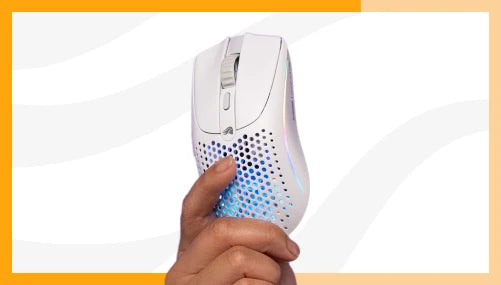
Checking your debounce: if you're suddenly getting inexplicable double-clicks and you haven't changed your sensitivity, DPI, or polling rate, the switch itself may be wearing out, or the debounce setting in your mouse software has drifted. Gaming mice with onboard memory profiles (like the Model O Eternal with 3 profiles) let you verify debounce settings across your saved profiles. The Glorious Model O3 Wireless supports polling rate adjustment from 125 Hz to 8000 Hz, and debounce is a separate controllable variable in the software.
Mouse Acceleration: Why "Off" Is the Competitive Default
Mouse acceleration is a Windows or game-level setting that changes cursor speed based on how fast you move your mouse. Move slowly, and acceleration applies a lower multiplier. Move quickly, and acceleration increases the multiplier, so fast flicks move the cursor proportionally further.
This sounds useful — fast adjustments feel snappier — but it breaks muscle memory. Your brain learns to associate a specific hand movement with a specific distance traveled. If acceleration changes that relationship every time you move at different speeds, you can't build consistent aim. Competitive players disable acceleration in Windows (via mouse settings), disable it in their game (sensitivity options), and choose mice designed to have acceleration turned off by default.
Glorious mice with BAMF 3.0 sensors (like the Model O3 Wireless) report position data accurately regardless of speed, which means acceleration, if enabled, is a software choice, not a hardware limitation. You can turn it off and keep it off. The Model O Eternal, with its PixArt 3311 optical sensor, has the same property — the sensor reports position data directly, and game-level and Windows-level acceleration are independent choices.
Putting It Together: A Baseline Gaming Setup
Here's a practical sequence if you're setting up a new mouse or troubleshooting an existing one:
Step 1: Set DPI to a system baseline. For most players, 400–800 DPI is a comfortable starting point. This gives you fine control on the desktop and enough speed for in-game adjustments without having to move your arm excessively. Set this in your mouse software (if your mouse has onboard memory, save it as Profile 1) and leave it.
Step 2: Verify polling rate. Set your mouse to 1000 Hz. Unless you're playing competitive esports and have the aim fundamentals already locked in, higher polling rates will show no noticeable difference. Save this to your onboard profile.
Step 3: Check debounce. If your mouse software exposes this setting (many don't), verify it's at the default 5–10 ms. If you're getting phantom double-clicks and nothing else has changed, a hardware replacement may be necessary.
Step 4: Disable acceleration everywhere. In Windows mouse settings, turn off pointer precision. In your game settings, set sensitivity to a round number (1.0 is often the default) and don't apply in-game acceleration modifiers.
Step 5: Tune sensitivity per game. Once DPI is locked in, adjust sensitivity for each game you play. This is where individual feel and preference matter. Some games feel right at 1.0 sensitivity; others at 0.8 or 1.2. This is the last variable to tweak once everything else is consistent.
The Case for Multiple Profiles
Most gaming mice ship with onboard memory that stores 1–3 profiles. A profile is a complete snapshot of your settings: DPI, polling rate, debounce, RGB configuration, and button remapping. Storing multiple profiles lets you switch between setups without plugging into a computer or restarting software.
Profile 1: Desktop + General Gaming DPI: 800 Polling: 1000 Hz Debounce: default (5–10 ms) Acceleration: off
Profile 2: Fast-Paced Competitive (Valorant, CS2, etc.) DPI: 400–600 Polling: 1000 Hz Debounce: default Sensitivity: tuned per game
Profile 3: Strategic/Slower Games (MOBA, Strategy, MMO) DPI: 1200–1600 Polling: 1000 Hz Debounce: default Sensitivity: tuned per game
The Glorious Model O Eternal stores 3 profiles onboard, which is enough for this exact structure. The Model O3 Wireless, with its BAMF 3.0 sensor, adds configurability for polling rate (125 / 1000 / 4000 / 8000 Hz options) and lets you save those choices per profile. [Unverified: exact polling rate options per SKU — requires spec sheet verification before publish.]
FAQ
Q: What DPI do professional esports players use?
A: Pro player DPI varies by game. In Valorant and CS2, most pros play between 400–800 DPI system-wide, then adjust in-game sensitivity between 0.5–1.5 to fine-tune aim. In tactical shooters where precise, slow adjustments matter, lower DPI (400–600) is standard. In fast-paced arena shooters (Quake, Doom), slightly higher DPI (800–1600) is common because rapid flick shots require faster movement. The consistency — they don't change DPI between games — matters more than the number itself.
Q: Is 8000 Hz polling worth it?
A: For most players, no. The latency reduction from 1000 Hz to 8000 Hz is 7 milliseconds — imperceptible in most gameplay contexts. You'll see noticeable returns only if you've already locked in your DPI, sensitivity, debounce, and eliminated acceleration — at which point your aim bottleneck is reaction time, not input latency. If you're starting out, fix those four variables first. 8000 Hz is a marginal gain after everything else is dialed.
Q: How do I know if my mouse debounce is failing?
A: You're getting phantom double-clicks in situations where you know you single-clicked. This happens most in games where a double-click has unintended consequences — firing twice in a shooter, issuing two commands in a strategy game. If you've verified your game isn't set to double-fire and nothing in your DPI or sensitivity changed, the switch is wearing out. Most gaming mice have a warranty; contact the manufacturer for a replacement.
Q: Should I match my sensitivity to a pro player's settings?
A: You can use pro settings as a starting baseline, but your sensitivity should be tuned to your own hand size, arm length, available desk space, and personal preference. A pro's sensitivity number is useful only if you've also matched their DPI, their mouse model, and their game. If any of those are different, the sensitivity number won't translate directly. Instead, match the underlying philosophy: lock DPI system-wide, tune sensitivity per game, and play with acceleration off. The specific number is personal.
Q: Do I need to buy an expensive gaming mouse to have good settings?
A: No. Any mouse with a reliable optical sensor, configurable DPI, and stable polling rate can be set up correctly. The expensive mice add features like lighter weight, better ergonomics, swappable batteries (like the Model O3 Wireless with its InfinitePlay system), or additional programmable buttons. These are quality-of-life upgrades, not requirements for good aim. A budget mouse with correct DPI, sensitivity, and debounce will outperform an expensive mouse with those settings wrong.